
C# visual basic 2005 User Controls
Windows forms controls are controls that are used in windows applications. These are also referred to as User Controls.
RAD of UI
User controls allow encapsulation of UI design. This allows rapid application development of UI. For instance, if every control has a name property, then by creating custom controls, we can eliminate the process of setting name property repetitively. While this is a basic functionality, Windows classes provide higher level of functionality to push RAD to a new high level.
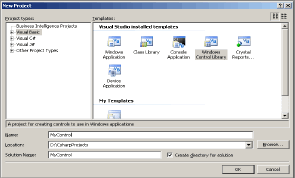
2.Select Visual Basic in project types and Windows Control Library in Template List. Enter 'MyControl' and click Ok.
3.By default, the name of the user control is UserControl1.
4.In the Solution Explorer window, click the UserControl1 and change the name as MyControl. Save the project.
More on Writing your Custom Control: step by step
We will now create a user control which accepts the Code and Name of the Customer.
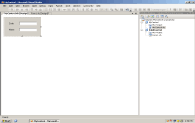
5.Place the controls by dragging two textbox and two label controls on the form and set their text properties as follows. Label1 - Code, Label2 - Name, TextBox1 - txtCode, TextBox2 - txtName.
We will now write the code for the control MyControl.
We must write the following code in the MyControl class.
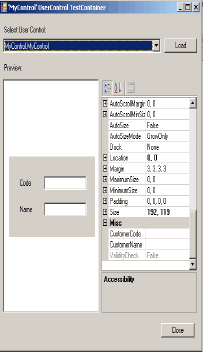
6. We will test the execution of user control by running the project. The user control will be displayed in a test container dialog box as shown in Fig below. We can test this control by entering data in code and name textbox controls and checking to see whether the result is as we desire. Click the Close button in the Test Container Dialog box. Note that the control was automatically added to the toolbox in the 'MyControl' control component tab. Once the control is added to the toolbox, we can use the it in applications like any other in the toolbox. However, it is evident, only after we add a windows application to this solution 'MyControl'.
We will now add a new user control to a form.
a.Choose File - Add - New project and in the Add New project Dialog box, select windows application in the Template pane and enter name as ValidateControl and then click Ok.
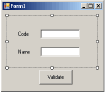
b.Now add 'MyControl' user control in the components tab of the toolbox and place it on the Form1 as shown in Fig. Form1 is the default form given by Visual Basic. Place a button control and name it as btnValidate.
c.Write the code in Form1 as below
d.Use the Solution Explorer and set the ValidateControl project as the Startup project using the context menu. Now run the project and the control will appear on the form.
e.Click on the validate button to see the result.
Firstly, in the class, we need to declare the event and we must raise the event at the appropriate points in the code by using the RaiseEvent statement. We can, then wire an event handler in the client application.
We can see the event definition in the following code just after the class definition. The event is then raised by calling RaiseEvent statement. An event, declared and raised is detected by the form. The event will appear in the list of events.
Change the code in Form1 as shown below.
When we click the validate button at runtime, the validation is performed and then the message is displayed in the event. This is a simple demonstration of C#, visual basic 2005 UserControls
Creating Custom Controls in visual basic 2005 and C#
Custom controls are created by you. There are two ways to do this. One is from scratch, using the base classes. The other method is to derive from existing ones and enhance functionality.RAD of UI
User controls allow encapsulation of UI design. This allows rapid application development of UI. For instance, if every control has a name property, then by creating custom controls, we can eliminate the process of setting name property repetitively. While this is a basic functionality, Windows classes provide higher level of functionality to push RAD to a new high level.
Steps to create a Custom Control
1.Select File - New - Project option to open the New project dialog box.2.Select Visual Basic in project types and Windows Control Library in Template List. Enter 'MyControl' and click Ok.
3.By default, the name of the user control is UserControl1.
4.In the Solution Explorer window, click the UserControl1 and change the name as MyControl. Save the project.
More on Writing your Custom Control: step by step
We will now create a user control which accepts the Code and Name of the Customer.
5.Place the controls by dragging two textbox and two label controls on the form and set their text properties as follows. Label1 - Code, Label2 - Name, TextBox1 - txtCode, TextBox2 - txtName.
We will now write the code for the control MyControl.
Writing properties to the control
User control is implemented as a class. So, we can write properties, methods and events just like in a class. There are two ways to access user control's properties. Declare public variables or use property procedures. We don't write public variables since it is against object-oriented programming practice.Writing methods to a control
Exposing a function or procedure from a user control is just like a exposing function or procedure from a class. We need to declare a method as a public.We must write the following code in the MyControl class.
Public Class MyControl
    Private CustCode As String
    Private CustName As String
   'property definitions used in the user control
   Public Property CustomerCode() As String
        Get
            Return CustCode
        End Get
        Set(ByVal value As String)
            CustCode = value
        End Set
    End Property
    Public Property CustomerName() As String
        Get
            Return CustName
        End Get
        Set(ByVal value As String)
            CustName = value
        End Set
    End Property
    Public Function ValidateCode() As String
        Dim CodeLength As Integer = 0
        Dim validlnth As Boolean
        validlnth = False
        CodeLength = CustCode.Length
        If CodeLength <= 10 Then
            Return True
        Else
            Return False
        End If
    End Function
    Public ReadOnly Property ValidityCheck() As Boolean
        Get
            If (txtCode.Text.Length > 0) And (txtName.Text.Length > 0)
					Then
                CustName = txtName.Text
                CustCode = txtCode.Text
                If ValidateCode() = True Then
                    Return True
                Else
                    Return False
                End If
            End If
        End Get
    End Property
End Class
6. We will test the execution of user control by running the project. The user control will be displayed in a test container dialog box as shown in Fig below. We can test this control by entering data in code and name textbox controls and checking to see whether the result is as we desire. Click the Close button in the Test Container Dialog box. Note that the control was automatically added to the toolbox in the 'MyControl' control component tab. Once the control is added to the toolbox, we can use the it in applications like any other in the toolbox. However, it is evident, only after we add a windows application to this solution 'MyControl'.
We will now add a new user control to a form.
a.Choose File - Add - New project and in the Add New project Dialog box, select windows application in the Template pane and enter name as ValidateControl and then click Ok.
b.Now add 'MyControl' user control in the components tab of the toolbox and place it on the Form1 as shown in Fig. Form1 is the default form given by Visual Basic. Place a button control and name it as btnValidate.
c.Write the code in Form1 as below
Public Class Form1
    Private Sub btnValidate_Click(ByVal sender As System.Object,
	ByVal e As System.EventArgs) Handles btnValidate.Click
        If MyControl1.ValidityCheck Then
            MessageBox.Show("Valid Customer Code and Name")
        Else
            MessageBox.Show("Invalid Customer Code and Name")
        End If
    End Sub
End Class
d.Use the Solution Explorer and set the ValidateControl project as the Startup project using the context menu. Now run the project and the control will appear on the form.
e.Click on the validate button to see the result.
7. Writing Events to a control.
We can use the system declared events in most of the situations. However, in certain situations the system defined events may not be sufficient. Suppose in the custom control we do not want to validate the user entries. Then, we can raise events for user entries and allow the user to handle the event as per their requirement. For this reason, we should be able to declare events, raise events and user should be able to handle the events raised by the control.Firstly, in the class, we need to declare the event and we must raise the event at the appropriate points in the code by using the RaiseEvent statement. We can, then wire an event handler in the client application.
We can see the event definition in the following code just after the class definition. The event is then raised by calling RaiseEvent statement. An event, declared and raised is detected by the form. The event will appear in the list of events.
Public Event validateEvent(ByVal Validation As Boolean)
    Public Function Validate()
        RaiseEvent validateEvent(ValidateCode)
        Exit Function
    End Function
'Change the ValidityCheck property as below.
 Public ReadOnly Property ValidityCheck() As Boolean
        Get
            If (txtCode.Text.Length > 0) And (txtName.Text.Length > 0) Then
                CustName = txtName.Text
                CustCode = txtCode.Text
                If Validate() = True Then
                    Return True
                Else
                    Return False
                End If
            End If
        End Get
    End Property
Change the code in Form1 as shown below.
Public Class Form1
Public Sub MyControl1_validateEvent(ByVal validation As Boolean) Handles MyControl1.validateEvent
	If validation = True Then
		MessageBox.Show("Message in validate Event")
	End If
End Sub
Private Sub btnValidate_Click(ByVal sender As System.Object, ByVal
			 e As System.EventArgs) Handles btnValidate.Click
	If MyControl1.ValidityCheck Then
		MessageBox.Show("Valid Customer Code and Name")
	Else
		MessageBox.Show("Invalid Customer Code and Name")
	End If
End Sub
End Class
When we click the validate button at runtime, the validation is performed and then the message is displayed in the event. This is a simple demonstration of C#, visual basic 2005 UserControls